Highlight Clips: Live Moments as Short-Form
Words by
Shoplive
Capture the key moments of your live shows as short-form videos with Shoplive’s Highlight Clips feature. We introduce how to use Highlight Clips to keep customers engaged and boost purchase conversion even after the broadcast ends.
In live commerce, the key to success lies in the brief moments when customers feel the value of a product. These are the crucial moments that lead to a purchase, yet after a broadcast ends it has not been easy to show these scenes to customers again.
Shoplive’s Highlight Clips feature turns the key scenes of a live broadcast into short clips, helping customers easily rewatch important moments even after the broadcast ends. This drives customers’ ongoing interest and increases the likelihood of a purchase. In this article, we introduce how Highlight Clips contribute to live commerce operations and how to use them.
What Can You Do with Highlight Clips?
Turn the Key Scenes of Live Commerce into Short-Form Videos
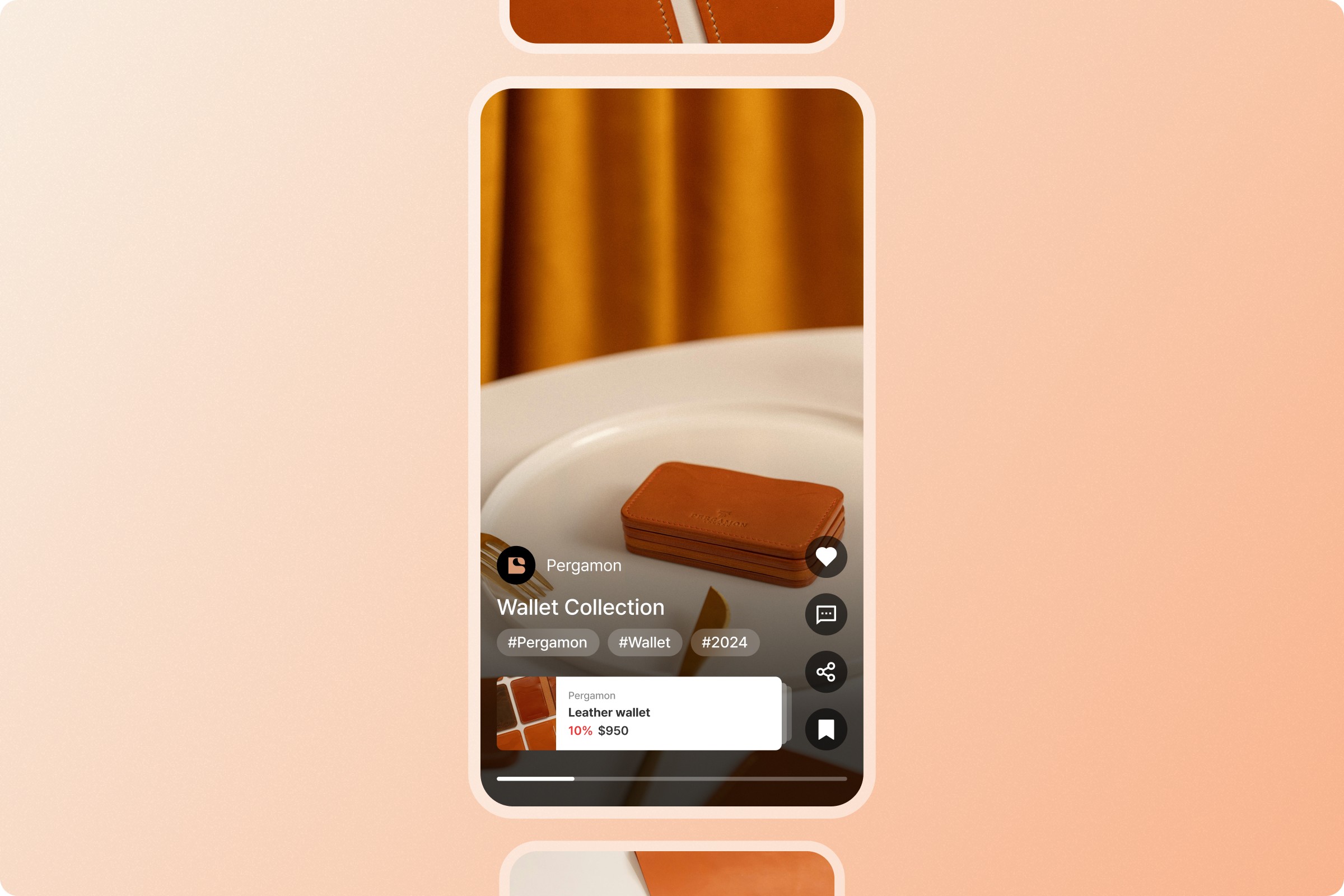
Even after a broadcast ends, you can easily turn important moments into short, powerful short-form videos. The short-form videos created this way are optimized for social media marketing and digital advertising content, so you can expose your product to more customers and draw their interest.
Key Scenes That Are Easy to Find in Replays
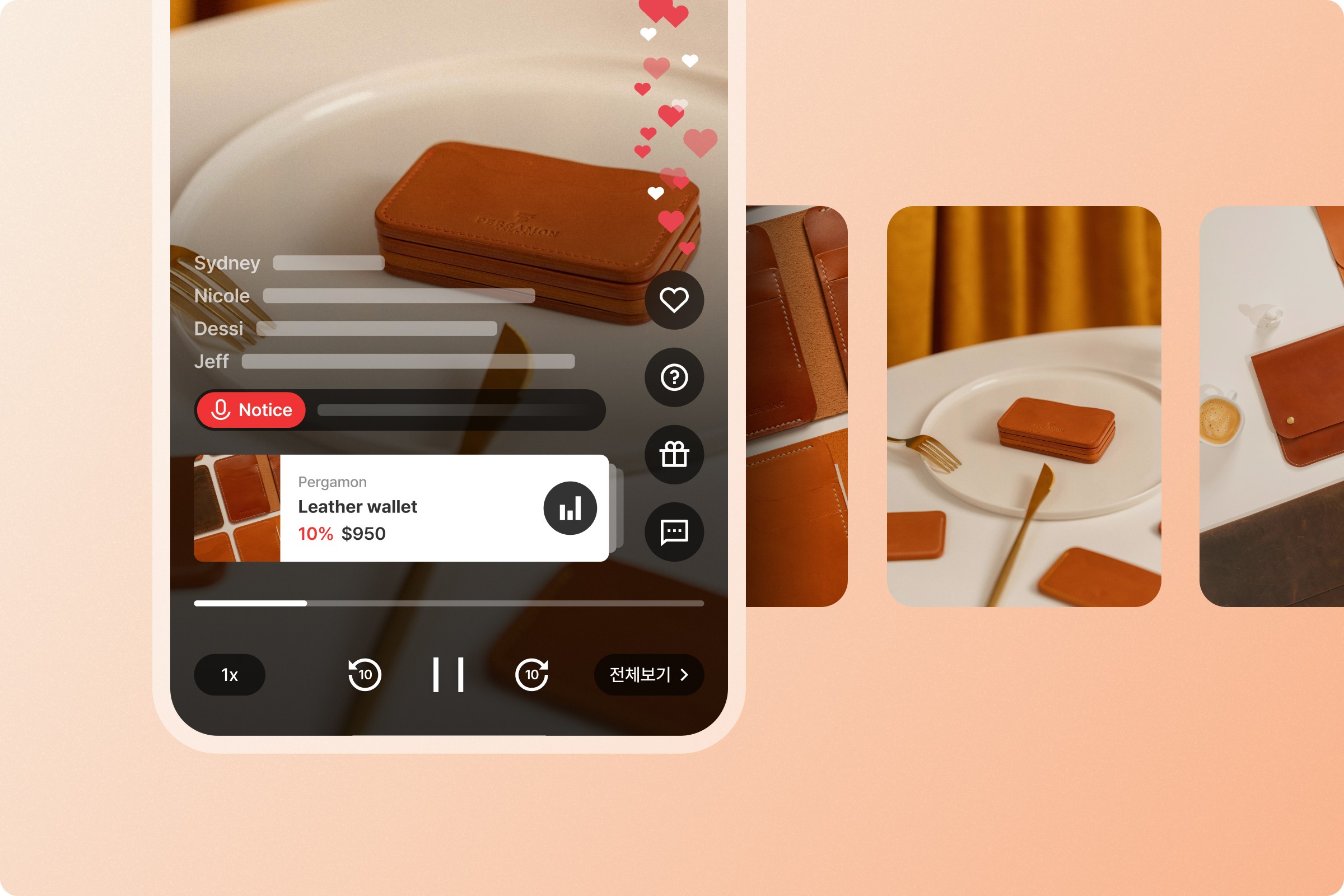
Because live commerce broadcasts are long, replay viewers easily lose focus. Highlight Clips play only the segments where the product stands out during replay, helping customers easily find important scenes, increasing replay dwell time, and delivering key product information effectively.
How Do You Create Highlight Clips?
Follow the steps below to capture important moments during a live broadcast and create Highlight Clips.
1. Set Highlight Segments During the Live Broadcast
During the live broadcast, set the segments you want to save as highlights. Highlight Clips are automatically generated based on the ON/OFF points set through the Campaign > Console > Products > NOW feature in Shoplive Admin. Use the NOW feature to select the segments where your product stands out.

2. Edit Clips and Create Short-Form Videos
You can produce short, powerful short-form videos from your edited highlight clips. By capturing only the most essential moments through secondary editing that fine-tunes the segments, you can draw more customer interest and showcase your product effectively.
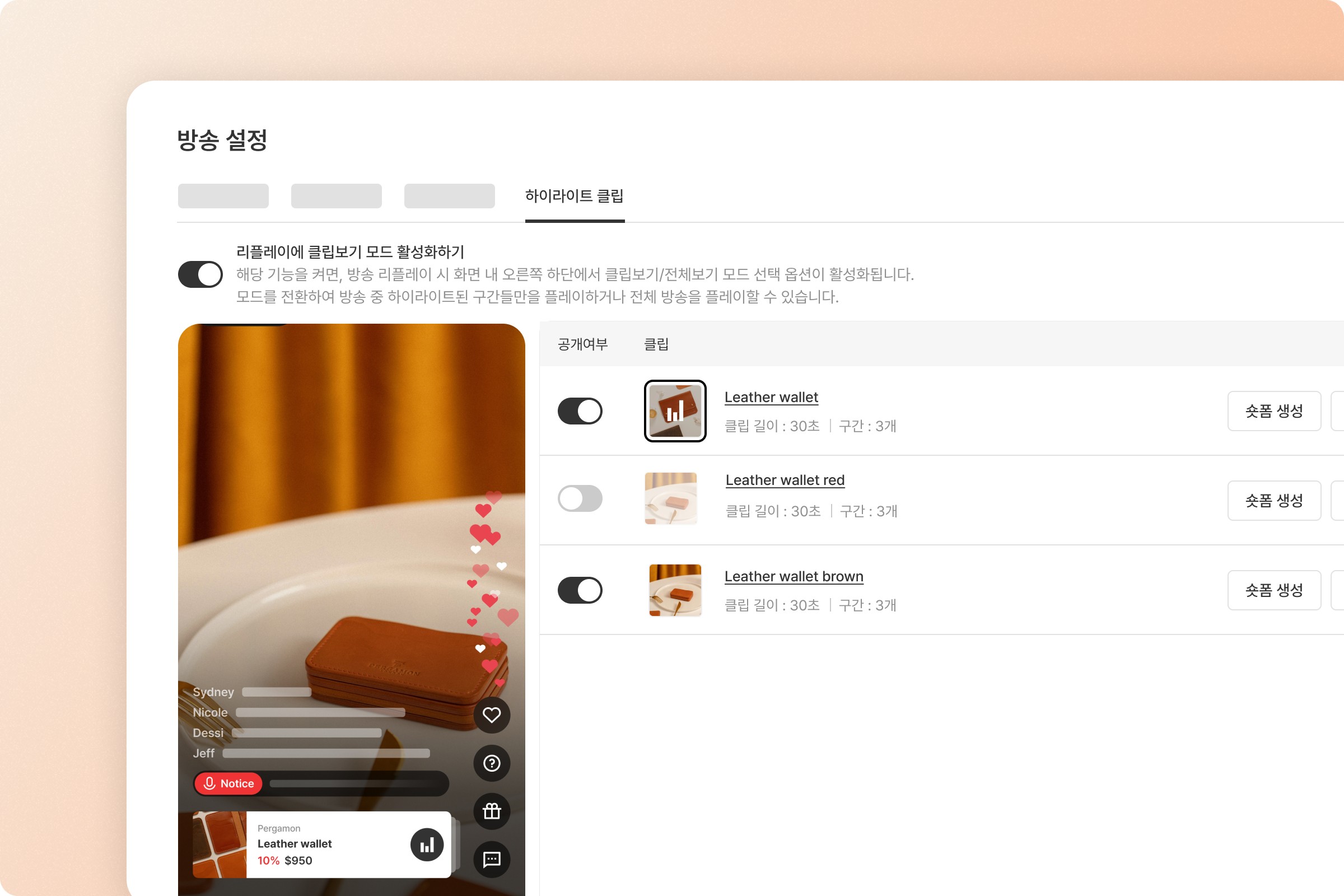
3. Enable Clips View Mode
When you enable Clips View mode in the replay player, customers can watch only the important product-introduction scenes in order, without having to rewatch the entire live session. This helps customers focus on the key clip segments, contributing to a higher purchase conversion rate.
Make Live Commerce More Effective with Highlight Clips
Shoplive’s Highlight Clips feature is a powerful tool that records the important moments of live commerce without missing them and lets you use them effectively. Customers can easily discover the segments where a product is highlighted, and this experience can lead to higher product sales.
Frequently Asked Questions
Q. How are Highlight Clips generated?
They are automatically generated based on the ON/OFF points set through the Campaign > Console > Products > NOW feature in Shoplive Admin, and you can refine only the key segments through secondary editing.
Q. Where can you use Highlight Clips?
You can turn them into short, powerful short-form videos for social media marketing and digital advertising, or use the ‘Clips View’ mode in replays to show only the key scenes in sequence.
Q. Does it help with replay dwell time?
Yes. Clips View mode plays only the segments where the product stands out, helping customers easily find key scenes and contributing to replay dwell time and purchase conversion.


