Simulcasting: Social Reach, Your Own Revenue

Words by
Claudia
Edited by
Lucid
💡 The short version
Keep social's reach, and let the purchases and the customer data build up on your own channel. Send one live show to Instagram, YouTube, and more at the same time, so the followers you already have turn into revenue and relationships on your channel.
What is simulcasting?
Plenty of brands already run live commerce on Instagram, YouTube, Facebook, and Whatnot. Running live on your own app or site as well usually means preparing a second broadcast and adding people to do it.
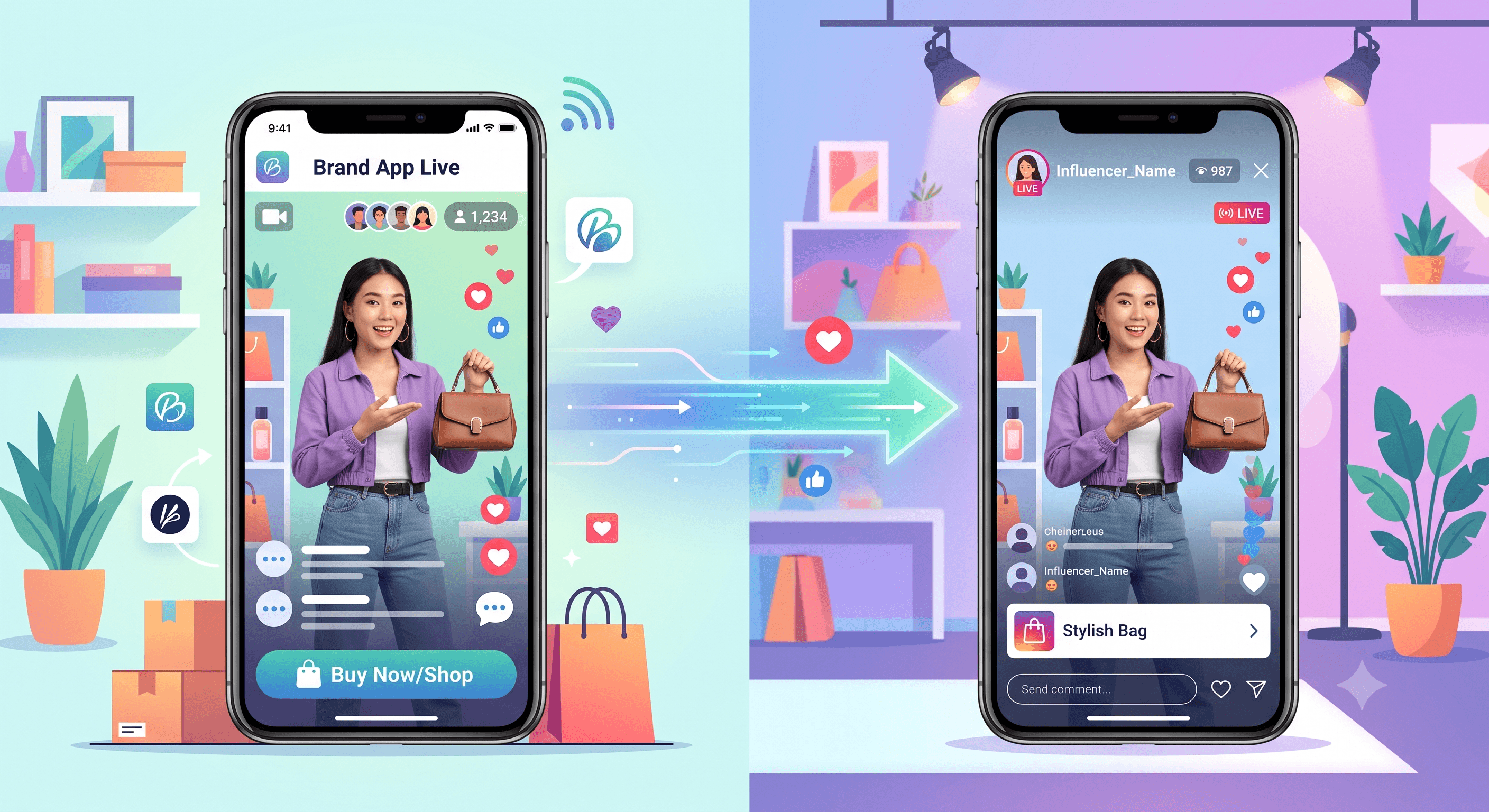
Shoplive simulcasting sends one live broadcast to several social channels and your own channel at the same time. The followers and reach you've built on social stay exactly where they are, while purchases and customer data accumulate on your own channel.
Social is where you meet new customers and where a broadcast spreads. But if you rely on social alone, purchase data and the customer relationship never fully belong to the brand. Simulcasting lets you keep social's reach while the revenue and the data build up on your own channel. Social brings people in; your own channel turns them into buyers and keeps the relationship.
How does it work?
Start one broadcast in Shoplive and the same show goes out to every connected channel — Instagram, YouTube, Facebook and more. You produce and run the show once, and meet customers on every channel where they already are. Each channel can play a different role.
Social channels — meet the followers you already have on Instagram, YouTube, or Facebook and pick up new viewers. Point those viewers to your own channel to see the products and buy.
Your app and site — where the purchase happens, and where viewing, product clicks, and order history accumulate. That behavior feeds customer identification and your CRM.
In short, social reaches more people, and your own channel carries the purchase and the relationship.
Why use Shoplive simulcasting
The point of Shoplive simulcasting is that an operator can connect the channels without development or a complicated integration. Paste the stream URL and stream key each platform gives you into the Shoplive admin and the connection is live. There's no need to rebuild an existing broadcast or file a request with your dev team.
Connect it yourself, no development
Enter the stream URL and key for the channel you want in the Shoplive admin and you're set up. A marketer or a live operator can add channels and start the broadcast, so you keep running live the way you already do and only widen where it lands. It works across formats too, from auctions to resale and multi-seller shows.
Three steps and you're done
1. Find the stream URL and key on each platform.
Create a live broadcast on the platform you want to send to and look for the stream URL and stream key. Most platforms show them on the live setup screen.
2. Enter them in the Shoplive admin.
Go to Streaming → SNS broadcast in the Shoplive admin, paste the stream URL and key for that channel, and save. For a channel that isn't on the list, add it yourself with Add simulcast channel.
3. Start the live show as usual.
Once the broadcast is running, press Start SNS broadcast in the console and the same video goes out to every connected channel.
One live setup → every channel at once
Prepare the broadcast once, and go live everywhere your customers already are.
One thing to watch with Instagram
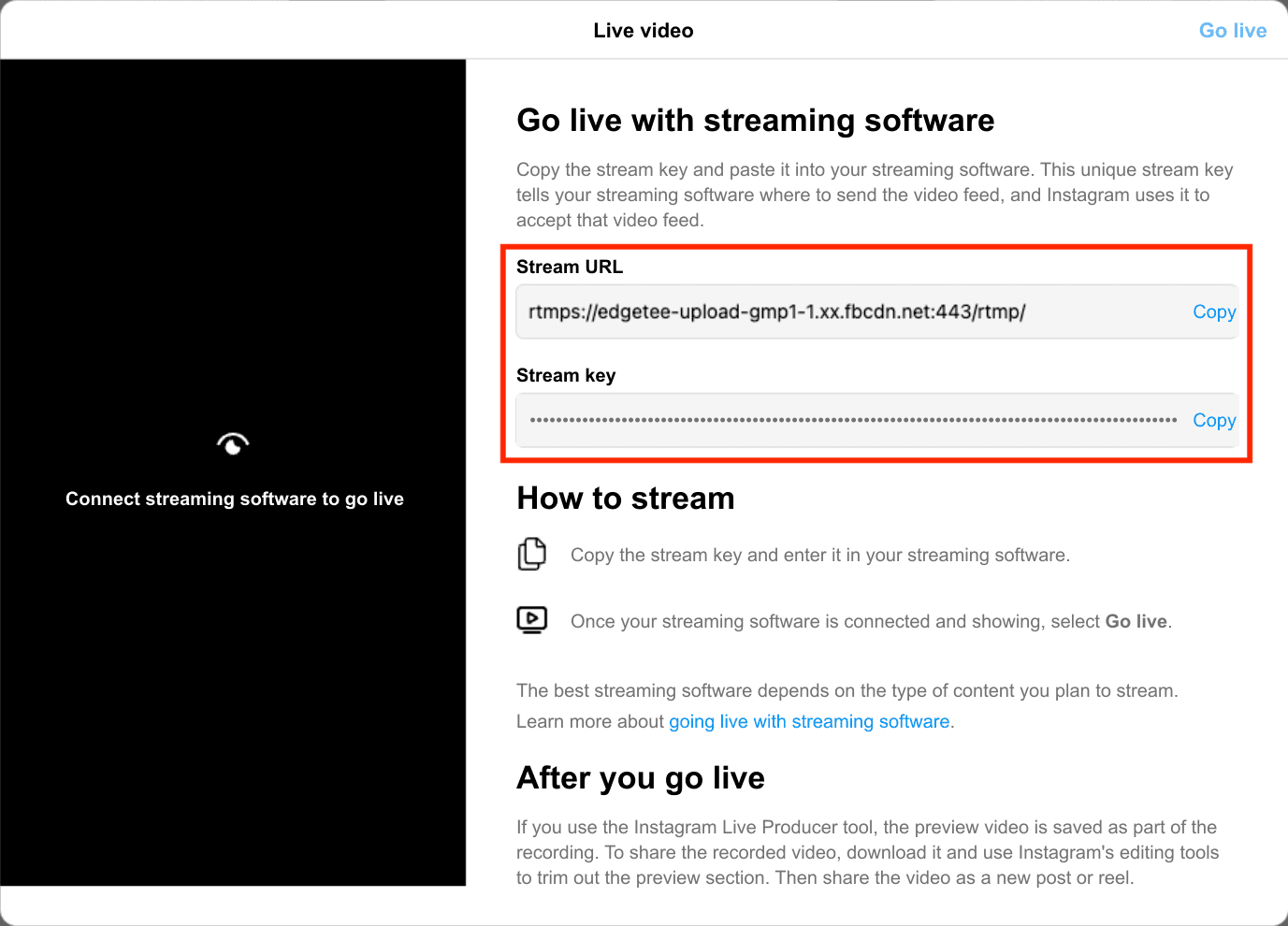
Instagram is the one channel where it matters that you check the stream details right before you go live. A stream key you saved in advance may no longer be valid by the time the show starts, so it's worth confirming the current stream URL and key before the real broadcast.
✓ Instagram simulcast order
Right before the broadcast, log in to Instagram on a PC and go to Create → Live.
Work through the live settings and check the stream URL and stream key that appear.
Paste them straight into the Shoplive admin and save.
Confirm the stream is up, then press Start SNS broadcast in the Shoplive console.
Check on Instagram once more that the broadcast is going out properly.
Setting it up right before the show is safest
If Instagram simulcasting isn't working, first check that the stream URL and key match the live broadcast you're running right now. Set the other platforms up in advance, and leave Instagram for the last moment before you go live.
TIP. If this is your first simulcast, run a private or test broadcast beforehand and confirm the Instagram connection comes through.
Getting the most out of it
Simulcasting isn't simply pushing the same show to more places. It's about using social's reach while the purchase and the relationship continue on your own channel.
Turn social traffic into revenue on your own channelTell viewers watching on social where to see the products and buy on your own channel. Offering a store-only benefit or a purchase link during the show turns the traffic you earned on social into orders on your own channel.
Turn an influencer's followers into new customersSimulcasting works for influencer collaborations too. The show reaches the influencer's existing followers on their social account, while your own channel carries the products and the offers. Working with several influencers, you can gather the traffic from all of their accounts into one channel of your own.
Turn one-time viewers into repeat buyersGetting someone who watched once on social to come back matters just as much. Offer sign-up rewards, points, or coupons that only exist on your own channel, then use viewing and purchase history to run follow-up CRM and turn a one-time viewer into a long-term customer.
Depend less on any single platformWhen revenue and customer contact concentrate on one platform, an algorithm change, a policy update, or an outage hits the business directly. Broadcasting to several channels while running your own alongside them spreads those touchpoints out.
Test promotions that only run on your own channelTry a launch or an exclusive discount that exists only on your channel. Social brings in existing followers and new viewers; your own channel converts them with the offer they can't get elsewhere. And because the data sits on your channel, you can see which offers and messages actually led to purchases.
In the end, simulcasting is a way to grow revenue and customer relationships on your own channel without giving up the traffic you have on social.
Pre-broadcast checklist
With simulcasting, what matters more than the broadcast itself is deciding in advance how you want customers to behave on each channel. Run through these before the real show.
1. Give social viewers a reason to move to your channel
A store-only coupon or a special offer gives social viewers a reason to visit. Repeating it during the show — "this one is only on our store" — helps bring them across.
2. Write a different CTA for each channel
On social, drive the visit: "See the products and offers on our store." On your own channel, drive the purchase: "Buy now" or "Check the live offer."3. Say out loud what social viewers can't see
Some of what your own channel offers — product details, events, quizzes — may not appear the same way on an outside platform. When that's the case, name the difference during the show: "Products and full details are on our store."
4. Decide up front what data you'll collect
Plan how you'll use the sign-ups, product views, and purchases from viewers who come across. After the show, order history and return-visit data feed coupons, CRM, and repeat-purchase campaigns.
5. Test before the real broadcast
If this is your first simulcast, use a private broadcast or a test account to check the stream first. Confirm that the stream URL and key are entered correctly and that the video shows up properly on each channel.
FAQ
Q. Do we have to stop the social lives we already run?
No. Keep running them exactly as you do, and simulcast to your own channel at the same time.
Q. Do we have to run a separate broadcast per channel?
No. One live broadcast goes out to every connected channel at once.
Q. Do we need extra equipment or developers?
No. You use your existing live setup, and enter each platform's stream URL and key in the Shoplive admin.
Q. What if Instagram is the only channel that won't simulcast?
First check that the stream URL and key are correct. For Instagram we recommend checking the current stream details and entering them right before the broadcast.
Q. Does it work for auctions or resale shows?
Yes. Simulcasting works across formats, auctions and resale included.
Q. Does it work when several sellers each run their own show?
Yes. It applies the same way to individual seller broadcasts.
Q. Where does the purchase actually happen?
On your own site or app. Social is where you reach people; your own channel is where purchases and customer data accumulate.
📝 Worth reading next
If you're already going live on social, there's no new broadcast to build — you just connect one more channel. To see how that turns into revenue and data on your own channel, book a demo.
References
Grand View Research, "Live Commerce Market Size & Share Report, 2026–2033"
Digital Applied, "Social Commerce Statistics 2026: GMV and Platform Data"
Venue Cloud, "When Social Platforms Go Down, First-Party Data Steps Up" (2026)
Omnibound, "First-Party Data Statistics (2026)"
Osmos, "First-Party Shopper Data in Retail Media: 2026 Playbook" (Experian, 2026)
Sprii, "Live Shopping Platforms: The Complete Guide for 2026"


