Run Live Commerce From Your Phone

Words by
Lucas
Edited by
Roanne
💡 The short version
Shoplive Studio handles everything from creating the broadcast to registering products, rehearsing, and going live — on a phone, without a PC.
You can manage products, chat, and notices in real time while you're live, which helps most in stores, pop-ups, and one-person broadcasts.
It syncs with the PC admin in real time, so use the PC for overview and reporting, and the app for running the show on site.
Running live with a small team, or short on space for a PC and camera gear? With the new version of Shoplive Studio you can prepare and start a live commerce broadcast from one app, wherever you are.
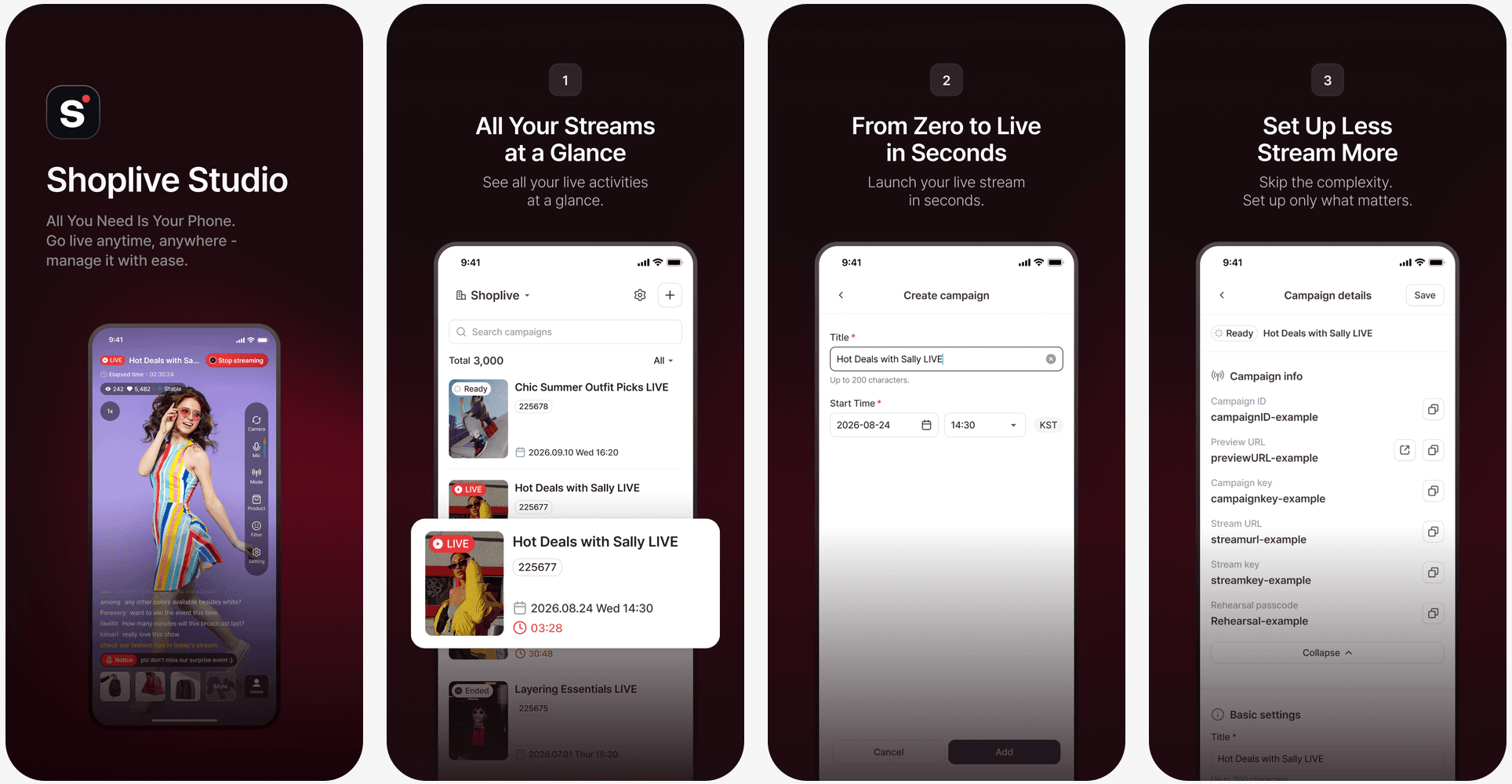
Can the Shoplive app really do all of it?
The old app was only for streaming a broadcast you had already built in the admin. The new version handles campaign creation, product registration, and broadcast management inside the app. No more walking back to a PC just to get a show ready.
Change something in the app or in the PC admin and it syncs in real time. Whoever edits, wherever they are, the data stays in one place, so settings never collide. You can build a broadcast at the office and pick it up on site.
That said, the app doesn't replace the PC admin. For managing several broadcasts at once or digging into reports, the PC is still easier. Think of the app as the tool for when you have to move on the spot. It's free on the App Store, and Android is on the way.
How do you start a broadcast?
Create the campaign first. Set a title and a start time in the app, fill in a few details, and you're done. Add products from your list, or register a new one on the spot.
Starting the stream doesn't put you in front of viewers. That step only connects your phone to the server. From there you can run a rehearsal to check the picture and sound first. Only people with the rehearsal entry code can join, so your team can sort out lighting and audio in private. Go public when you're ready.
When everything looks right, tap Start live broadcast. The status badge switches to LIVE and you're on air from the phone. If the broadcast has started but the stream is off — or it drops mid-show — a notice appears on screen so you catch it right away.
Will the picture quality hold up?
Lighting is what trips people up on site. The app lets you adjust the picture while you're live.
Faces are handled with presets. Pick one of the ready-made filters — tone-up, clear, natural — or fine-tune skin, jawline, V-line, nose, eye size, and lips one by one. If it looks overdone, one reset puts it back. Filters and beauty settings can be changed mid-broadcast.
Store lighting is handled with brightness and shutter speed. If the picture is dark overall, adjust the brightness. If it flickers slightly under fluorescent lights, change the shutter speed. For small items like rings or cosmetics, macro mode keeps the focus sharp up close.
There's also mirror, zoom, and wide-angle. Flip the picture when it reads backwards, zoom in to show a product up close, and switch to wide-angle to fit more of a cramped store into frame.
One thing to note: set camera options like shutter speed and brightness before you start streaming. Once the stream is live, that menu locks.
Can you run the show while broadcasting?
Move the products people are responding to up front, and drop the ones that sold out. Answer questions in live chat as they come, and clear out messages that get in the way. Whether you make the change in the app or in the PC admin, it lands in real time.
Pin the product you're talking about with NOW to put it at the top of the screen. Anything everyone needs to see — shipping costs, a coupon — goes up as a notice banner across the top of the broadcast. One notice shows at a time, and a new one replaces the last.
In chat, tap a message to reply, or press and hold to save it or block the sender. Words you've added to the filter list are caught automatically, and saved messages are there to review after the show. Chat colors can be matched to the look of your screen.
✓ What you can do mid-broadcast
Move a product that's getting attention to the front
Take a sold-out product down immediately
Answer viewer questions in chat
Clear disruptive messages on the spot

Can one person handle it alone?
Yes. One person is enough, and with two you can split the work and make it easier.
On your own, host mode lets you present while handling products and chat yourself. No separate operator needed — one phone covers the broadcast, the product list, and viewer questions.
With two people, you can divide the roles. One takes host mode and focuses on being in front of the camera. The other uses admin mode on their own phone to reorder products and answer chat.
Admin mode strips out the camera and streaming menus and keeps only what you need for products and chat. However many people you have, you can split the work to fit the day.
When does it help most?
The less prep time you have, and the more the situation changes on site, the more one app pays off. A few cases where it fits.
✓ Especially good for these situations
When the team is small — one host can carry streaming, products, and chat and the show still runs. When someone joins to help, hand them admin mode.
When there's no room for equipment — one phone, no PC or camera rig. It works at an outdoor booth or in a store too tight to set anything up.
When the moment itself is the content — a treatment, a making process, the feel of the store. Things a studio can't capture.
When broadcasts are frequent or unplanned — a season where stock moves fast, or a promotion decided at short notice. Build the broadcast on the spot and pull sold-out items straight away.
There's more you can do before, during, and after a broadcast.
Stage | What to do |
|---|---|
Before | Broadcasting across several stores? Search your campaign list and reuse an earlier setup. |
During | Go wide when the frame feels tight, use a filter when the lighting is off, and reach for mirror mode and zoom when the picture is flipped or a product needs a close-up. |
After | The social simulcast and the replay stay up and keep earning views, and data insights show watch time and conversion contribution to feed into the next show. |
You don't have to use everything at once. Start with creating a campaign and running a rehearsal, then add the before, during, and after pieces as you get comfortable. Shoplive Studio lets you run live more easily, and shape it around whatever the day looks like.
FAQ
Q. Can you run live commerce from a phone alone?
Yes. With the Shoplive Studio app you can go from creating a campaign to registering products, rehearsing, streaming, and managing products and chat mid-broadcast — all on a phone, with no PC. It works in stores, pop-ups, and outdoor events where setting up a broadcast space or a PC isn't realistic.
Q. Can the PC admin and the Shoplive Studio app be used together?
Yes. The app and the PC admin sync in real time. A broadcast built on the PC can be picked up and finished in the app on site, and changes made in the app show up in the PC admin. Use the PC when you want an overview of several broadcasts or detailed reporting, and the app when you're preparing and running a show on location.
Q. Can one person run a live commerce show?
Yes. A single person can present in host mode while managing products and chat at the same time. With two or more you can split the roles — one stays in host mode and focuses on the broadcast, the other works in admin mode on products and chat.
Q. Can you rehearse before going live?
Yes. Starting the stream does not put you in front of viewers. A rehearsal, open only to people with the entry code, lets you check the picture and sound first. Once the lighting, audio, and camera framing look right, you start the live broadcast.
Q. Can products and chat be managed during the broadcast?
Yes. Mid-broadcast you can reorder products, take sold-out items down, and pin the product you're presenting to the top of the screen. You can reply to viewer chat and deal with disruptive messages as well. Every change lands in both the app and the PC admin in real time.
Q. Can picture quality be adjusted from the phone too?
Yes. You can use filters and beauty settings, brightness, shutter speed, wide-angle, zoom, and mirror to suit the conditions — showing a small product up close, or fitting more of a tight space into frame. Note that some camera options, such as brightness and shutter speed, have to be set before you start streaming.
📝 Worth reading next
Learn more
For a closer look at the Studio app, see the guides below.
Already using Shoplive? Get the app on the App Store and use it from your next broadcast. Not on board yet? Book a demo and start with live commerce itself.


