Short-form Multi-card: up to 20 product cards in one video

Words by
Lucas
Edited by
Roanne
Wanted to show one more fit cut, but missed many details because only one video could be registered in the short-form? Now, you can register up to 20 videos and images as cards in a single short-form, and viewers can swipe left and right to watch them continuously all at once.
What changes with the Short-form Multi-card?
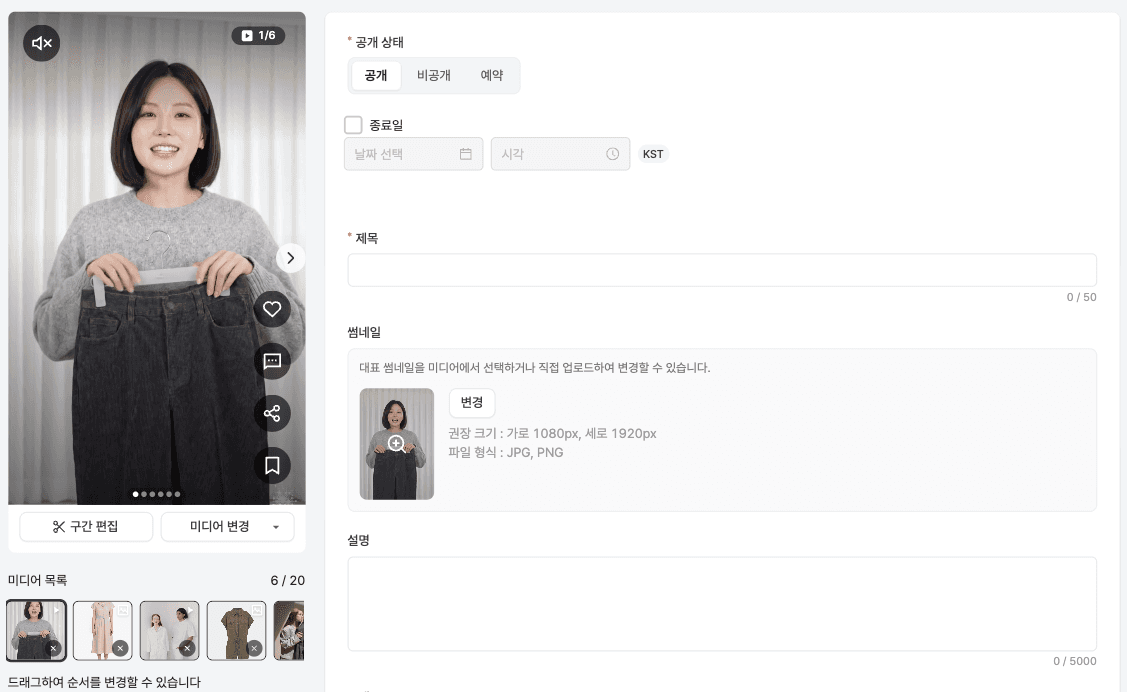
Wear cuts, detail cuts, and size information that could not all fit in a single video can now be viewed sequentially by viewers swiping left or right on the screen by simply adding a few cards. You can freely mix and register videos and images, and easily change the order with a simple drag in the admin panel.
✓ How to Use
Freely mix and register videos and images as cards
Register up to 20 cards per short-form video
Change card order by dragging in the admin panel
By attaching information that previously required searching separately on detail pages, like wear cuts or size charts, directly onto cards, viewers can check what they are curious about right there without navigating away. This means you can deliver all the information needed for a purchase decision at once, without user drop-off.
How do I make a Short-form Multi-card?
You can add, delete, and change the order of cards in the media section of the short-form creation/editing screen. Register by mixing videos and images using your preferred method among uploading, media library, or linking YouTube, then drag the small thumbnails to organize the order.
💡 TIP
The card order is the order the viewer sees. Place the most critical information or eye-catching scene on the first card!
How does it look on the viewer's screen?
If there are 2 or more cards, it operates as a card track where the entire screen swipes left and right. When a video card finishes playing, and after about 5 seconds for an image card, it automatically moves to the next card, which does not conflict with the existing behavior of swiping up and down to view other short-forms.
How is the Short-form Multi-card useful?
Simply placing cards will cause viewers to drop off. Try arranging cards considering the questions viewers might have while looking at the product. "What does it look like in real life? Will it fit me? Is it worth the price?" A single card that considers the viewer's flow like this not only increases retention rate but also boosts purchase conversion rate.
Product Type | Example Card Storyline |
|---|---|
👚 Fashion & Apparel | Wear video → Material/Stitch close-up → Fit comparison by height/body type → Size chart/Washing guide |
💄 Beauty | How-to video → Color swatches for all shades → Before & After by skin tone → Ingredients/Volume details |
🏠 Living & Home Appliances | In-use video → Actual size drawing → Home placement example → Components/Installation guide |
🍲 Food | Cooking demonstration video → Finished dish shot → Raw ingredients/Weight details → Storage/Reheating instructions |
In all four cases, the first card catches the eye, and as you move backward, it narrows down to information needed for making a decision. Even with the same cards, changing the order changes the story being told, so it's easy to break the storyline down into the following three parts.
✓ How to Plan a Storyline
First Card — The scene that makes viewers stop. Whether the viewer will swipe to see more is decided here.
Middle Cards — In the order of questions that naturally arise after seeing the first card. Show the real-life feel first, then move on to whether it fits their body or home.
Last Card — Plays the role of resolving hesitation. Place coupons, set configurations, or shipping guides here.
If you are running lives, there is also a way to use scenes saved as Highlight Clips as the first card. By placing segments that got good reactions during the broadcast at the front, and attaching detailed cuts and size info at the back, you can continue to utilize that scene even after the live broadcast ends.
💡 TIP
You can register up to 20 cards, but you don't need to fill them all from the start. It is more efficient to first create two or three cards based on points viewers might be curious about when looking at this product, and then expand them based on reactions.
You don't need to shoot new content for every card. You can upload existing product detail page images as they are.
Multiple angles and additional information of a product, which were hard to contain in a single video, are now more than enough with just a few cards. Try adding cards in the short-form admin panel right now.
Want to know more details about Short-form Multi-cards? Please refer to the links below!
Korean - Short-form Multi-card / English - Short-form Multi-card / Japanese - Short-form Multi-card
Frequently Asked Questions (Q&A)
Q. How many cards can be registered in a single short-form?
You can register up to 20 videos/images as cards per short-form.
Q. Can I mix and register videos and images?
Yes. You can freely mix and register videos and images regardless of whether you add them via direct upload, media library, or YouTube link.
Q. How do I change the card order?
Dragging thumbnails in the admin media section changes the order, which is immediately reflected on the viewer's screen.
Q. What happens to existing short-forms registered with only one video?
For short-forms with only one card, the playback bar is maintained as before, and they can be used without any additional settings.
Q. Can I still use the existing feature of swiping up and down to view other short-forms?
Yes. The existing feature of swiping up and down to go to other short-forms remains the same. The screen responds to either left/right or up/down depending on the initial direction of movement, so the two behaviors do not conflict with each other.
Q. Can I adjust the auto-advance time (5 seconds) for image cards?
Yes. The auto-advance time for image cards can be adjusted as desired from the default of 5 seconds.


